

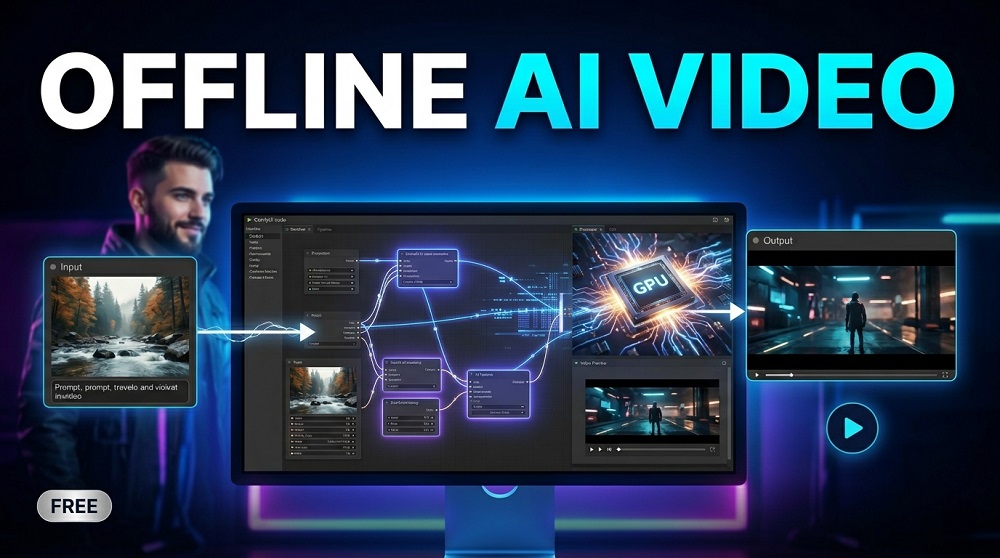
Making AI-generated videos used to require expensive software or paid cloud subscriptions. But that has changed a lot in recent years. Today, you can create HIGH-QUALITY AI VIDEOS right from your own computer, completely for free. Tools like ComfyUI have made this possible for regular users, hobbyists, and even small businesses who wants to explore the power of AI without spending a single dollar.
So, is it really possible to make professional-looking AI videos for free? Yes, absolutely. But there is a learning curve involved. This guide will walk you through how to get started, which platforms to use, and what you need to know before you begin.
What is ComfyUI and Why It Matters
ComfyUI is a node-based graphical interface for running STABLE DIFFUSION and related AI models locally on your computer. It was originally built for image generation, but has since expanded to support video generation through extensions and custom nodes.
Why is it so popular? Because it gives you FULL CONTROL over every part of the generation pipeline. You can mix and match models, adjust settings, and build very complex workflows without writing a single line of code. Everything is visual and drag-and-drop.
It is not the easiest tool to learn at first. But once you understand the basics, you will find it to be one of the most powerful FREE tools available for AI video creation.
System Requirements You Need to Know
Before diving in, you need to make sure your system can actually handle running these models. Here are the minimum and recommended specs:
| Component | Minimum | Recommended |
|---|---|---|
| GPU (NVIDIA) | 8 GB VRAM | 16 GB+ VRAM |
| RAM | 16 GB | 32 GB+ |
| Storage | 30 GB free | 100 GB+ SSD |
| Operating System | Windows 10 / Linux | Windows 11 / Ubuntu 22 |
| Python | 3.10 | 3.10 or 3.11 |
Can you run this on an AMD GPU? You can, but NVIDIA cards are far better supported. AMD users may faces some compatibility issues with certain models and extensions.
How to Install ComfyUI for Video Generation
The installation process is straightforward if you follow the steps carefully. Here is a basic setup guide:
- Download ComfyUI from the official GitHub repository.
- Install Python 3.10 or 3.11 on your machine if you have not already.
- Create a virtual environment and install the required Python packages using
pip install -r requirements.txt. - Download the base STABLE DIFFUSION model (such as SD 1.5 or SDXL) and place it in the models/checkpoints folder.
- For video generation, install the ComfyUI-AnimateDiff-Evolved custom node from GitHub.
- Download the ANIMATEDIFF motion modules and place them in the correct folder.
- Launch ComfyUI using
python main.pyand open your browser atlocalhost:8188.
That is the basic setup. From there, you load a workflow JSON file, configure your prompt, and hit Generate. The output is usually a GIF or MP4 video depending on the settings you choose.
Best Free Models for AI Video Generation in ComfyUI
ComfyUI supports several video-capable models. Below are some of the best ones that works well with it:
- AnimateDiff – The most popular choice for turning images into short animated videos. Works great with most SD checkpoints.
- SVD (Stable Video Diffusion) – Developed by Stability AI. Takes a single image and animates it with smooth motion. Requires around 12 GB VRAM.
- CogVideoX – An open-source model by Tsinghua University. Supports text-to-video generation and runs locally with enough VRAM.
- Mochi-1 – A newer open-source video model that produce high quality 480p clips. Requires significant VRAM though.
- Wan2.1 – A recent open-source model from Alibaba that has gained a lot of attention for its quality and relatively lower hardware needs.
Each of these models have different strengths. ANIMATEDIFF is best for short loops and stylized content. SVD is great for realistic animations from images. CogVideoX and WAN2.1 are better for text-to-video tasks.
Other Offline and Free AI Video Platforms to Try
ComfyUI is not the only option. There are several other tools you can run locally or use for free with limited credits. Let us look at some of them:
| Platform | Type | Free to Use? | Best For |
|---|---|---|---|
| ComfyUI + AnimateDiff | Offline / Local | Yes, fully free | Short animated clips from images |
| InvokeAI | Offline / Local | Yes, fully free | Image-to-video with UI-friendly interface |
| Automatic1111 | Offline / Local | Yes, fully free | General SD workflows, some video plugins |
| Wan2.1 (via ComfyUI) | Offline / Local | Yes, fully free | Text-to-video generation |
| Kling AI | Online / Cloud | Limited free credits | High-quality realistic video generation |
| Hailuo AI | Online / Cloud | Limited free credits | Fast text-to-video with good motion |
If you want to explore a broader range of tools before committing to one, you can check out this full list of free AI video generators to see which platforms are currently available and compare them side by side.
Tips for Getting Better Results from Offline AI Video Tools
Getting decent output from these tools is one thing. Getting GREAT results is another. Here are some practical tips that many users overlook:
- Use high-quality input images – If you are doing image-to-video, start with a clean, well-composed image. Blurry or low-res inputs gives blurry outputs.
- Keep prompts short and focused – Long, complicated prompts often confuses the model. Simple and specific works better most of the time.
- Lower the motion strength for realism – AnimateDiff and SVD both have motion controls. Too much motion makes the video look unrealistic or distorted.
- Use CFG scale around 7 to 9 – This is the guidance scale. Going too high makes images look over-processed. 7 is usually a safe starting point.
- Save your workflows – ComfyUI lets you save workflows as JSON files. Always save a working workflow before experimenting.
- Use VAE decoding with tiling for high-res outputs – This helps reduce out-of-memory errors when generating at higher resolutions.
Combining AI Images and Videos in Your Workflow
Many creators start by generating AI images first and then animating them. This is actually one of the most efficient pipelines for offline AI video creation. You use a text-to-image model to create the base frame, then feed it into a video model to bring it to life.
Tools like COMFYUI support this kind of multi-step workflow natively. You can build a pipeline where image generation and video generation happens in the same workflow, without switching between different programs.
If you are looking for AI image tools to use as part of this process, this collection of free AI image generators can help you find the right starting point for your visual assets before you animate them.
How Long Does It Take to Generate AI Videos Locally?
This is one of the most common questions from new users. The honest answer is: it depends a lot on your hardware.
On a mid-range GPU like an NVIDIA RTX 3080 (10 GB VRAM), a 2 to 4 second video clip using AnimateDiff can take anywhere from 2 to 8 minutes depending on resolution and steps. More powerful GPUs like the RTX 4090 can do the same task in under a minute.
Cloud-based tools like KLING AI or HAILUO AI are obviously much faster since they run on dedicated server hardware. But they come with usage limits on free tiers. Local tools give you UNLIMITED GENERATION once set up, which is the biggest advantage of going offline.
Common Mistakes to Avoid as a Beginner
A lot of people give up on ComfyUI after hitting their first few errors. Here are some mistakes that is easy to avoid if you know about them in advance:
- Not reading model compatibility notes before downloading. Not all models works with all checkpoints.
- Placing model files in the wrong folder. ComfyUI is very strict about folder structure.
- Using too many steps in sampling. 20 to 30 steps is usually enough. More steps does not always mean better quality.
- Ignoring VRAM errors. If you get CUDA out-of-memory errors, reduce resolution or use CPU offloading settings.
- Not updating custom nodes. The AnimateDiff nodes in particular updates frequently and old versions can cause bugs.
Final Thoughts
Making AI videos for free is not a dream anymore. With tools like COMFYUI, ANIMATEDIFF, and open-source models like WAN2.1 and COGVIDEOX, you have access to a powerful ecosystem of video generation capabilities right on your own machine.
Yes, it require some technical setup and learning. But the payoff is worth it. You get unlimited generations, full control over the output, and no monthly subscription fees. Whether you are a content creator, a filmmaker, or just someone who wants to experiment with AI, offline AI video generation is one of the most rewarding skills you can learn right now.
Start with ComfyUI, experiment with AnimateDiff, and gradually try other models as you gets more comfortable. The community is large, the resources are freely available, and the tools are only getting better with time.
