

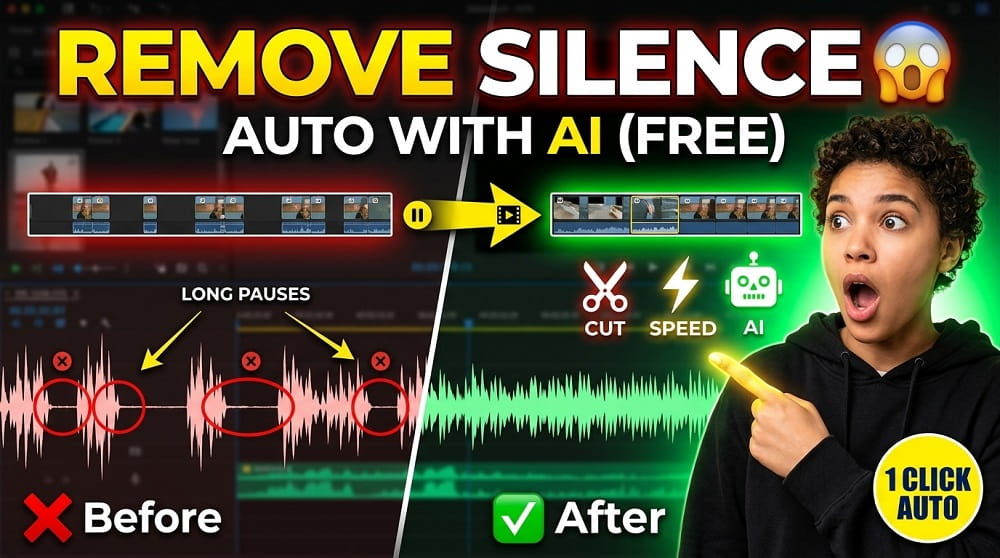
If you have ever watched your own recorded video and felt frustrated by the long pauses and awkward silences, you are not alone. Almost every content creator, whether beginner or experienced, deals with this problem. The good news is that you don’t need to spend hours editing manually anymore. With the help of FREE AI tools, you can remove all the unwanted pauses and silence from your videos in just few minutes.
In this blog post, we will cover everything you need to know about removing pauses from videos automatically. We will also look at which tools are best for this job and how to use them step by step.
Why Pauses and Silences are a Big Problem in Videos?
Before we get into the tools, let’s understand why this matters. Pauses and silences in a video can really hurt the viewer experience. Viewers have very short attention span these days and if your video have too many awkward moments of silence, they will simply click away.
Here is what silence does to your video:
- It makes the video feel UNPROFESSIONAL
- It increases the total video length without adding value
- Viewers lose interest very quickly
- YouTube and other platforms may rank your video lower due to poor watch time
- It can make you as a speaker look nervous or unprepared
So yes, removing pauses is not just about aesthetics. Its directly related to your video performance and channel growth.
Can AI Really Remove Silence From Videos Automatically?
Short answer? YES. Modern AI tools are now powerful enough to analyze the audio track of your video, detect where the silence is, and automatically cut or reduce those parts. You don’t need to do anything manually. Just upload your video, let the AI do its job, and download the clean version.
This technology is called SILENCE DETECTION or AUTO-CUT, and many free tools now offer this feature without requiring you to install any software or create an account.
Best Free AI Tools to Remove Pauses From Videos
There are several tools available online that can help with this task. Some are fully free, while others offer free tier with limited usage. Let’s look at the most popular ones:
| Tool Name | Free to Use | Auto Silence Removal | No Sign-Up Required |
|---|---|---|---|
| Veed.io | Partially Free | Yes | No |
| Kapwing | Partially Free | Yes | No |
| Descript | Free (Limited) | Yes | No |
| Clideo | Partially Free | Yes | No |
| Adobe Express | Partially Free | Yes | No |
| AutoCut (autocut.pro) | Free Tier Available | Yes | No |
Most of these tools work in browser and does not require any software installation. However, some features like HD export or longer video support may need you to subscribe to a paid plan.
Step by Step: How to Remove Silence Using Veed.io
Let’s take Veed.io as a example and walk through the process:
- Go to Veed.io and click on “New Project”
- Upload your video by dragging and dropping it onto the timeline
- Once uploaded, look for the “Clean Audio” or “Remove Silence” option in the left sidebar
- Click on it and set the SILENCE THRESHOLD level (usually default works fine)
- Hit “Apply” and the AI will scan your entire video
- Preview the result and if you are happy, click “Export”
The whole process takes only few minutes depending on the length of your video. Its that simple.
Step by Step: How to Use Descript for Auto-Cut
Descript is one of the most powerful tools for this purpose. It uses AI to transcribe your video into text, and then you can simply delete the pauses from the TEXT, not the timeline. This is a very unique and effective approach.
- Create a free account on Descript
- Import your video or audio file
- Wait for it to TRANSCRIBE automatically (usually takes 1-2 minutes)
- Look for the “Remove Filler Words” and “Remove Silence” option
- Descript will highlight all the pauses in the transcript view
- You can review and then apply the changes with one click
- Export the final video
Descript also helps you remove FILLER WORDS like “um”, “uh”, “like”, and “you know” automatically. This is a huge bonus for anyone who records tutorials or talking head videos.
What is the Best Silence Threshold Setting?
This is a common question. What should you set as the silence threshold? Here is a simple guide:
| Silence Duration | Recommended Action | Best For |
|---|---|---|
| Less than 0.3 seconds | Keep (do not remove) | Natural speech rhythm |
| 0.3 to 0.8 seconds | Shorten or keep | Conversational videos |
| 0.8 to 1.5 seconds | Remove or trim | Tutorials, online courses |
| More than 1.5 seconds | Always remove | All video types |
Most AI tools let you customize this threshold so you can control how aggressively you want the silence removed.
Should You Combine Silence Removal With AI Video Creation?
Absolutely. If you are serious about creating high quality video content, you should be using AI at EVERY stage of your production workflow. From creating the video to editing and polishing it, AI can save you hours of work.
For example, if you want to create videos from scratch without even recording yourself, you can use the free tools available at All AI Video Generators on VeoAIFree. These tools let you generate high quality AI videos from text prompts, images, and even just ideas, completely free and without any registration.
And once your video is ready, you can run it through a silence remover to make sure the pacing and flow is perfect before publishing.
Pro Tips to Reduce Pauses at Recording Time
Prevention is always better than cure. If you can reduce the number of pauses while recording, you will have less editing work to do afterward. Here are some tips:
- Use a script or outline so you always know what to say next
- Do a warm-up take before your actual recording
- Drink water before recording to avoid throat clearing sounds
- Record in a QUIET ROOM to avoid background noise that can confuse the AI
- Use a good microphone for cleaner audio
- Practice your topic beforehand, even if you are an expert
These small habits can make a big difference in how much post-production editing you need to do.
What About Removing Silence From AI-Generated Videos?
Good question. If you are using AI generated videos with voiceovers or automated narration, those can also have unnatural pauses. The same tools work perfectly well for these videos. You just upload and let the AI handle it.
If you are working with AI videos that have background music or sound effects, make sure to use tools that allow you to select ONLY the voice track for silence detection. Removing silence from music can create weird results.
You should also check out the Video Transcriber tool on VeoAIFree which can transcribe your video into text instantly. This is very useful when you want to identify problem sections in long recordings before deciding what to cut.
Combining Silence Removal With AI Image Enhancements
Many video creators also use AI image tools to create custom thumbnails and visuals for their videos. If you want to level up your entire content creation process, take a look at the All AI Image Generators available on VeoAIFree. These tools can help you create stunning thumbnails that match the quality of your edited, polished video.
A good thumbnail paired with a smooth, pause-free video is one of the best combination you can have for higher click-through rates and better audience retention.
Common Mistakes People Make When Using Auto Silence Removal
Even with AI tools, there are few mistakes that people often make:
- Setting the threshold too aggressive: If you remove every single micro-pause, the video will sound robotic and unnatural
- Not previewing before export: Always watch the edited version before downloading
- Ignoring background noise: Background noise can prevent the AI from detecting real silence
- Not backing up the original: Always keep a copy of your original video before running it through any AI tool
- Using low quality recording: Poor audio quality makes it harder for AI to detect silence accurately
Final Thoughts
Removing pauses and silence from your videos is one of the EASIEST and most effective ways to improve your content quality. With the free AI tools available today, there is really no excuse to have a video full of awkward gaps and dead air.
Whether you are a YouTuber, a course creator, a business professional, or just someone who want to share videos online, using auto silence removal will immediately make your videos look and feel more professional. It saves time, improves viewer retention, and honestly just makes the whole editing process much less painful.
Start with any of the tools mentioned in this post, experiment with the settings, and you will notice a huge difference in how your videos come across. And remember, if you need to create AI videos from scratch as well, VeoAIFree has got you covered with all the tools you need completely free.
