

Creating videos used to be expensive, time consuming, and honestly, quite stressful. You needed a camera, a good microphone, editing software, and hours of your time just to produce a short clip. But in 2026, the situation is very different. AI has changed everything. And the best part? You can do all of it for FREE.
So how exactly do you create stunning AI videos without spending any money? That is exactly what this post is going to cover. We will walk through the entire process, from generating your first image or video clip to putting it all together into something that actually looks polished and professional.
Why People Are Switching to AI Video Creation
The shift toward AI video creation is not just a trend. It is a genuine change in how content is being made. Businesses, educators, social media creators, and marketers are all moving in this direction because it simply makes sense.
Here is why AI video creation has become so popular in 2026:
- No expensive camera equipment is needed
- No filming experience is required
- You can generate full video clips from just a text prompt
- You can turn still images into animated video sequences
- The whole process takes minutes, not days
- Most of the best tools are completely free to use
If you have been on the fence about trying AI video tools, 2026 is genuinely the best time to start. The technology is mature, the free options are strong, and the learning curve is lower than ever.
Step 1: Start with AI-Generated Images
Before you create a video, you often need a visual starting point. That could be a background image, a character, a product shot, or an illustration. This is where AI image generators come in.
One of the best free options available right now is the Nano Banana Unlimited AI Image Generator on VeoAIFree. It lets you generate HIGH-QUALITY 4K images completely free, with no registration required. You just type in your prompt and the image is ready in seconds.
Why start with images? Because many of the best AI video workflows actually begin with a strong visual. You generate an image that captures exactly the scene or mood you want, and then you animate it into a video. This gives you much more creative control compared to relying entirely on a text-to-video prompt.
Some practical uses for AI-generated images in video projects include:
- Creating custom backgrounds and scenes
- Generating characters or subjects you want to animate
- Building thumbnail or intro graphics
- Producing product visuals for advertisement videos
- Making concept art for video storyboards
Step 2: Generate Video from Text Using AI
Once you have a clear idea of what you want to create, the next step is generating actual video footage. This is where TEXT-TO-VIDEO AI tools come in, and they have become remarkably capable in 2026.
The VEO 3.1 AI Video Generator on VeoAIFree is one of the most powerful free options available. Powered by Google’s latest VEO 3.1 model, it allows you to type a descriptive prompt and receive a high-quality video clip in return. No account, no payment, no limits.
So what makes a good text-to-video prompt? Here are a few things to keep in mind:
- Be specific about the setting. Instead of “a city street,” write “a busy New York street at night with neon lights and light rain.”
- Describe the camera movement. Words like “slow zoom,” “aerial shot,” or “close-up” help the model understand what you want visually.
- Include mood or atmosphere. Is it cinematic? Dramatic? Lighthearted? Mentioning this directly produces better results.
- Keep it to one main action. The AI handles short, focused prompts better than long, complicated scenes with multiple events happening at once.
With VEO 3.1, even relatively simple prompts tend to produce impressive results. The model has very strong motion consistency, which means objects and characters move in a realistic and natural way throughout the clip.
Step 3: Turn Images into Video Clips
Here is a workflow that a lot of creators are using right now and it produces great results. You start by generating a high-quality still image, and then you animate that image into a moving video clip.
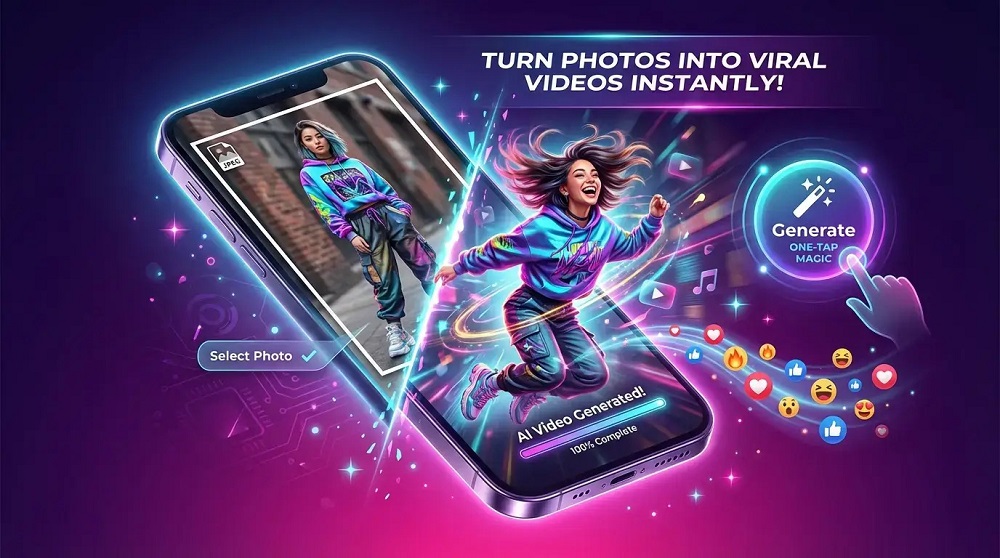
VeoAIFree has a dedicated tool for exactly this purpose. The Photo and Image to Video Generator lets you upload any image and convert it into a dynamic video clip with smooth, realistic motion. It works with photos you have taken yourself, AI-generated images, or really any visual you want to bring to life.
This is particularly useful for:
- Animating product images for social media ads
- Bringing AI-generated characters to life
- Creating cinematic title sequences from still artwork
- Turning travel or event photos into short video reels
- Making educational content more visually engaging
The image to video approach also gives you a level of visual consistency that is harder to achieve with pure text-to-video generation. Since you already have the image exactly as you want it, the video output starts from that controlled visual and animates outward from there.
A Comparison of These Three Workflows
| Workflow | Best For | Speed | Creative Control |
|---|---|---|---|
| AI Image Generation | Thumbnails, backgrounds, storyboards | Very Fast | High |
| Text to Video (VEO 3.1) | Original footage, B-roll, ads | Fast | Moderate |
| Image to Video | Animating existing visuals | Fast | Very High |
The ideal approach is actually to combine all three. Generate an image, refine it until it looks exactly right, and then animate it using the image-to-video tool. Alongside that, use text-to-video for any dynamic scenes or motion-heavy clips. Then bring everything together in a free editor like CapCut or DaVinci Resolve.
Tips to Make Your AI Videos Look More Professional
Generating the clips is only half the job. Here is how you take your raw AI video content and make it look polished.
Pay Attention to Transitions
One of the most common mistakes beginners make is cutting from clip to clip without any thought to transitions. Even simple fades or match cuts can make a big difference in how professional the final video looks. Free editors like CapCut and Clipchamp have plenty of transition options built in.
Add Captions and Text
Videos with captions consistently perform better on social media. Most platforms auto-mute videos by default, so on screen text keeps viewers engaged even without sound. Tools like VEED.IO can auto-generate captions in seconds, saving you the manual transcription work.
Use Background Music Thoughtfully
The right music completely changes the feel of a video. For free music, YouTube Audio Library and Pixabay both have large collections of royalty free tracks that are safe to use on any platform. Choose something that matches the MOOD of your visuals rather than just picking something because it sounds good in isolation.
Keep Your Aspect Ratio Consistent
Are you making content for TikTok and Instagram Reels? Use 9:16 vertical format. YouTube? Stick to 16:9. LinkedIn and Facebook? Square or landscape both work. Getting the aspect ratio wrong is a small mistake that immediately makes a video look unprofessional, so always set this before you start generating clips.
Color Grade Your Footage
AI-generated video clips can sometimes look slightly flat or inconsistent in color from clip to clip. Applying a simple color grade (even just adjusting brightness, contrast, and saturation) across your entire timeline creates a more cohesive visual style. DaVinci Resolve, even its free version, is excellent for this.
Common Questions People Ask About Free AI Video Creation
Is the quality really good enough for professional use? Yes, for the majority of use cases. Short-form social content, ads, educational videos, and explainer videos all look excellent when made with tools like VEO 3.1. For feature-length film production, you would want higher-end options, but for everything else, free tools are more than capable.
Do I need any technical skills? Not really. Most of these tools are designed for non-technical users. If you can type a description of what you want to see, you can generate a video.
Are there any hidden costs? The tools on VeoAIFree are genuinely free. Some third-party editors like VEED.IO have watermarks on free exports, but you can avoid that by using CapCut or Clipchamp for your editing, both of which export watermark-free on their free plans.
What types of content work best with AI video generation? Social media content, product advertisements, educational explainers, travel content, ASMR style videos, and short narrative clips all work very well. The AI handles these content categories with strong results.
The Full Free Workflow, Summarized
- Go to the Nano Banana Image Generator and create your base visuals or scene images.
- Use the VEO 3.1 Text to Video Generator to create any motion-heavy or scene-based clips from text prompts.
- Upload your best images to the Image to Video Generator to animate them into smooth video clips.
- Import all your clips into a free editor like CapCut, Clipchamp, or DaVinci Resolve.
- Add captions, music, transitions, and color grading.
- Export and publish.
That is the complete workflow and every single step of it is available for free right now.
Final Thoughts
AI video creation in 2026 is not just accessible, it is genuinely impressive. The gap between professional studio production and what a solo creator can produce with free AI tools has never been smaller. Whether you are building a brand, creating content for social media, making educational materials, or just experimenting creatively, the tools are here and they are ready to use.
Start with the tools on VeoAIFree. Generate your first clip today. Once you see what is possible with just a text prompt or a single image, you will understand why so many creators are making the switch to AI-powered video production.
