

AI Image Expander
Extend image borders in any direction. Free alternative to Canva's AI expand. Growing fast, very few quality free tools exist.
See What the AI Expander Can Do
Real edits made with a single text prompt. No tools, no sliders, no skill required.
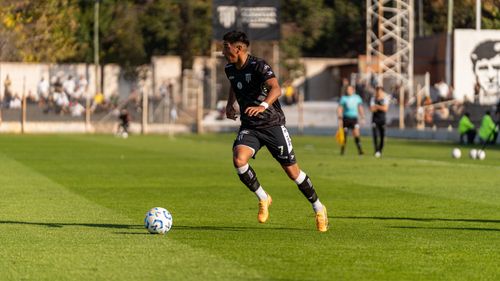 Before
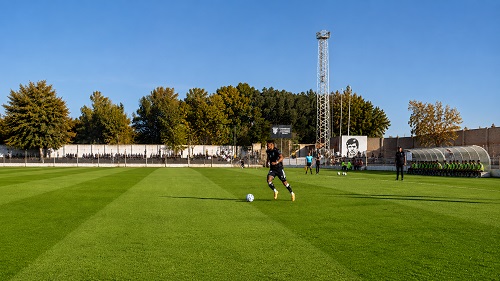 After
Before
After
Before
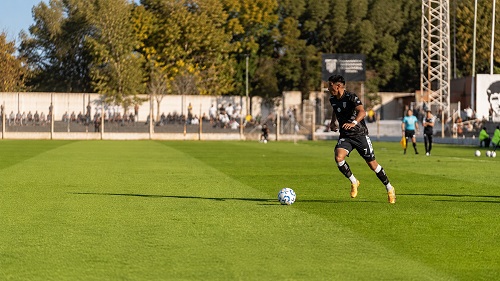 After
Before
After
Before
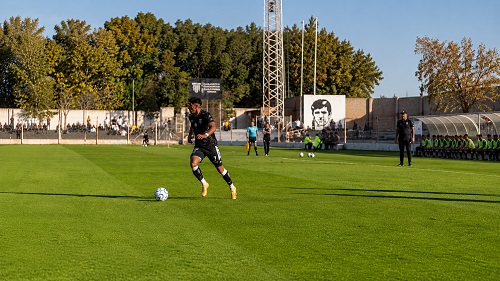 After
After
Extend Any Photo Beyond Its Original Borders Without Starting Over
Every photographer has been there. The shot is good, genuinely good, but the framing is slightly off. The subject is pushed too far to one side. The horizon sits too high. There is not enough empty space to place text for a banner or a cover. Cropping makes it worse. Recomposing was not an option in the moment. And stretching the edges is something no one should ever do to a photo they actually care about.
The AI Image Expander on veoaifree.com takes a different approach entirely. Instead of distorting what is already there, it generates entirely new visual content that continues naturally from the edges of your photo. Grass keeps growing. Skies keep stretching. Walls extend. Street scenes carry on. The AI reads the existing colors, textures, lighting, and perspective in your image and builds outward from them in a way that is visually coherent from corner to corner.
The result is not a patch job. It is an expanded image that holds together as a single, unified photograph with more room than the original ever had.
Ready to Expand Your Image?
AI Image Expander Free
Upload your photo, choose your expansion direction, and let the AI extend it naturally
Tell the AI how to expand "add more sky above," "extend the background left," "widen the scene on both sides"…Your photo stays private. No watermarks. No credits. No account needed.
Open the Image Expander →What the AI Image Expander Actually Does to Your Photo
This is not a resize tool. It is not a content-aware scale that squishes pixels. The expander synthesizes brand new image content from scratch, guided entirely by what already exists in your photo. Here is what that makes possible:
Outpainting in Any Direction
Add canvas to the left, right, top, bottom, or all four sides at once. The AI fills each new area with generated content that matches the scene, not a copy of the existing edge pixels.
Aspect Ratio Conversion
Turn a square Instagram photo into a widescreen landscape, convert a portrait shot into a horizontal banner, or reformat a 4x3 image to fit a 16x9 display without cropping anything out.
Scene Continuation
Backgrounds extend logically. A forest keeps having trees. A beach keeps having sand and water. A city street keeps having buildings and pavement. The AI does not guess randomly; it reads the scene and continues it.
Sky and Horizon Extension
Add more sky above a landscape without it looking like a flat colour block. Cloud formations, gradients, and atmospheric haze all continue in a way that matches the light quality of the original photo.
Subject Recentering
If your subject ended up too close to one edge, expand the opposite side to bring them back to center without touching the original image or cropping anything important out of frame.
Text and Design Space Creation
Add empty, clean negative space to one side of a photo so there is room for a headline, a logo, or graphic elements. Useful for banners, thumbnails, advertisements, and editorial layouts.
How to Expand a Photo With AI (Step by Step)
- Open the Expander Visit the AI Image Expander page on veoaifree.com. No account, no software, no payment details. Open it in a browser and you are already in.
- Upload Your Photo Drag your image into the tool or select it from your device. JPG, PNG, and WebP files all work at full resolution with no compression on upload.
- Set Your Expansion Choose which sides to expand and by how much. You can describe what you want in the expanded area or leave it to the AI to continue the scene naturally from the existing content.
- Generate the Expansion The AI analyzes the full image before it generates anything. It reads the lighting angle, color palette, texture detail, and spatial logic of your scene, then builds outward from every edge you selected.
- Review and Download Check the result, add a follow-up instruction if something needs adjusting, or download the finished image at full resolution with no watermark and no quality loss.
- Photos with consistent backgrounds expand most cleanly. A plain wall, open sky, or natural landscape gives the AI more to work with than a cluttered scene right to the edge.
- If you want specific content in the expanded area, describe it. "Extend left with more forest and a dirt path" produces a more controlled result than leaving it open ended.
- For portrait and headshot photos, expand gently. Adding a little room around a face reads naturally; adding too much at once can introduce inconsistencies in how the background continues.
- Widescreen conversions from square photos work best when the original has a clear subject in the center with some background already visible on both sides.
- If the first result is close but not quite right, use a follow-up prompt rather than starting over. Small corrections to an almost-right expansion are faster than regenerating from scratch.
Real Situations Where the Image Expander Solves an Actual Problem
Website Banners and Headers
Turn portrait or square photography into wide horizontal banners for website headers, email campaigns, and digital advertising without reshooting or hiring a designer to fake the extra space manually.
Print and Publication Layouts
Expand a photo to fit a magazine spread, a book cover with spine allowance, or a poster format where the original crop falls short of the required dimensions on one or more sides.
Social Media Reformatting
Adapt a single photo to every platform format without multiple crops that all look slightly wrong. Expand to 16x9 for YouTube, 4x5 for Instagram feed, and 9x16 for Stories from the same original file.
Landscape and Architecture Photography
Give wide scenic shots even more breathing room, extend architectural photography to show more of a building's context, or add foreground depth to a landscape that feels slightly too tight at the bottom.
Why the AI Image Expander Works Better Than the Alternatives
- It Generates, Not Stretches Every pixel in the expanded area is newly created content, not a distorted or tiled copy of the original edge. The difference in quality is immediately visible.
- Lighting and Color Stay Consistent The AI matches the exposure, white balance, and color temperature of the existing photo so the expanded area does not look like it came from a different image or a different time of day.
- Works on Complex Edges Sky meeting treelines, water meeting shoreline, hair against backgrounds. The expansion handles visually complicated boundaries without leaving a visible seam at the join.
- Completely Free With No Usage Limits No credits to buy, no subscription tier that unlocks higher resolution, no watermark on downloads. Every expansion is free, full resolution, and ready to use.
- Fast Enough for a Real Workflow Expansions process in seconds, not minutes. Fast enough to try a result, decide it needs adjusting, and generate a refined version without breaking your creative momentum.
- Private by Default Uploaded photos are processed for your session only and discarded immediately after. Nothing is retained, stored, or used for any purpose beyond your current expansion.
Who Uses the AI Image Expander and What They Use It For
Graphic designers use it to adapt client photography to layout requirements without going back to a photographer. When an image is almost right but needs two more inches on the left for a text block, the expander adds those two inches in seconds.
Content creators and YouTubers convert existing photos into thumbnail and banner formats that match platform specifications without awkward crops that cut out faces or key visual elements.
Real estate photographers extend interior shots to show more of a room, add height to ceiling shots, or widen hallway and kitchen photographs that felt tight in the original composition.
E-commerce teams reformat product photography to fit multiple storefront templates and advertising dimensions from a single original image, saving the time and cost of reshooting for every new placement.
Travel and landscape photographers give their best shots more compositional room, fix horizon placement that was slightly off, or create panoramic versions of standard shots without stitching multiple exposures.
Marketing teams adapt one strong image across an entire campaign's range of formats, from a narrow sidebar ad to a full-width homepage hero, keeping a consistent visual while fitting every required dimension.
The Extra Space Your Photo Needs Is One Upload Away
Stop settling for a crop that almost works or a resize that obviously does not. The AI Image Expander extends your photo in whatever direction it needs to go, with generated content that holds together as part of the original scene. Upload the image, set the expansion, and download the result.
Expand Your First Photo Free →