
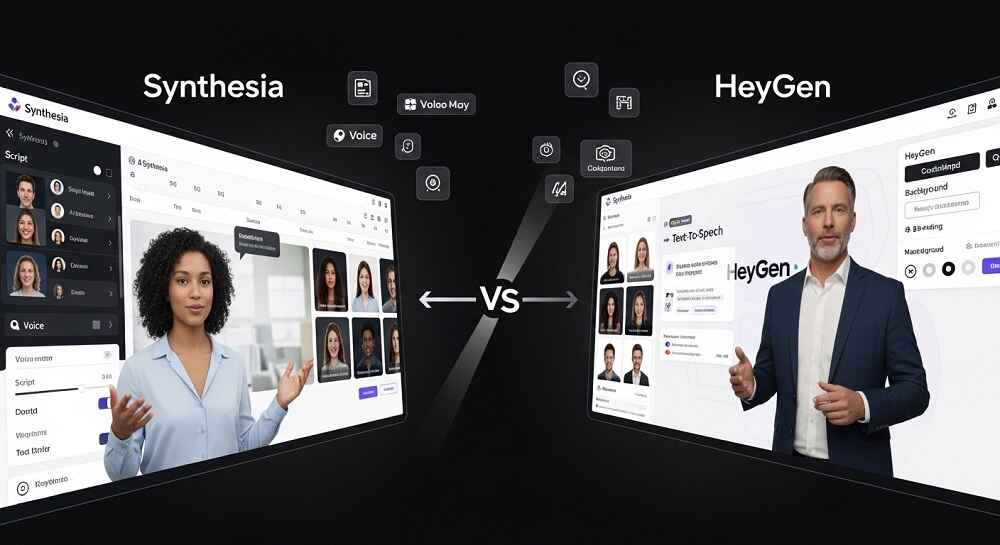
Making a professional spokesperson video used to require a camera crew, a studio, a teleprompter, and a real human who is comfortable on screen. That was a lot of money and a lot of time. Today, AI has changed ALL of that. Tools like Synthesia and HeyGen let anyone, even with zero video production experience, create high quality spokesperson videos in minutes.
So, are these tools worth it? Can they really replace a human presenter? In most cases, yes. Especially for corporate training, product explainers, onboarding videos, and marketing content. Let’s break down how each platform works, what makes them different, and exactly how you can use them to create videos that look genuinely professional.
What Are AI Spokesperson Videos?
An AI spokesperson video is a video where a digital human, or AI AVATAR, presents your script on screen. The avatar speaks, moves, and even makes facial expressions that feel natural. You simply type your script, choose an avatar, pick a language, and the platform generates the full video for you.
These videos are widely used for:
- Employee training and onboarding
- Product demos and explainer videos
- Marketing and social media content
- E-learning courses
- Internal company communication
If you want to explore more AI video creation options beyond spokesperson videos, check out the full list of AI Video Generators on VeoAIFree to find the right tool for your specific needs.
Synthesia vs HeyGen: A Quick Comparison
Before we go into the step-by-step tutorials, here is a side by side look at both platforms so you know what you are dealing with.
| Feature | Synthesia | HeyGen |
|---|---|---|
| AI Avatars Available | 200+ | 300+ |
| Custom Avatar Creation | Yes (paid plans) | Yes (all paid plans) |
| Languages Supported | 140+ | 175+ |
| Video Translation | Limited | Strong (lip sync included) |
| Screen Recording | No | Yes |
| Free Plan | Yes (limited) | Yes (limited) |
| Best For | Corporate training, L&D teams | Marketing, social media, sales |
Both are excellent tools. The one you choose should depend on your USE CASE more than anything else.
How to Use Synthesia to Make a Spokesperson Video
Synthesia is probably the most well known name in AI avatar video creation. It is used by thousands of companies including Microsoft, Google, and Heineken for their internal and external video content. Here is how to get started.
Step 1: Create Your Synthesia Account
Go to synthesia.io and sign up. They do offer a free plan that lets you create a limited number of videos with watermarks. If you want full access and HD quality output, you will need to upgrade to a paid plan. For most professional use cases, the Starter plan is enough to begin.
Step 2: Choose a Template or Start From Scratch
Once you are inside the dashboard, you can either pick from a library of pre-built templates or start with a blank canvas. Templates are great for beginners because the layout, background, and avatar are already placed. You just need to replace the placeholder text with your own script.
Categories of templates include:
- Training and onboarding
- Sales and marketing
- Internal communication
- Product walkthroughs
Step 3: Select Your AI Avatar
This is where it gets interesting. Synthesia has over 200 AI avatars, representing a diverse range of genders, ages, ethnicities, and styles. Some avatars are in casual clothing, others in business attire. You can even create a CUSTOM AVATAR of yourself by recording a short video on their platform (available on higher tier plans).
When choosing an avatar, think about:
- Does this avatar match your brand’s tone?
- Is the clothing professional enough for your audience?
- Does the avatar match the topic (a tech explainer might suit a different style than a health training video)?
Step 4: Write or Paste Your Script
Type your script directly into the text box for each slide. Synthesia uses TEXT-TO-SPEECH technology to convert your written words into spoken audio, perfectly synced with the avatar’s mouth movements. You can add pauses, change pronunciation for certain words, and even adjust the speaking speed.
Keep your script conversational. Write the way people actually speak. Short sentences work best. Avoid complex technical jargon unless your audience is familiar with it.
Step 5: Customize the Background and Branding
You can upload your company logo, change background colors, add images, include text overlays, and even embed screen recordings into the video. Synthesia also lets you add music in the background at a low volume, which helps make the final video feel more polished.
Step 6: Choose the Language and Voice
Synthesia supports over 140 languages. This is one of its biggest strengths. You can create a video in English and then duplicate it and switch the language to Spanish, French, German, or Japanese with just a few clicks. The avatar’s lip movements will adjust to match the new language, which is remarkable.
Step 7: Generate and Download
Once everything looks good, click “Generate Video.” The rendering process usually takes a few minutes depending on the length. When done, you can preview the video, make edits, and then download it in MP4 format or share it directly via a link.
How to Use HeyGen to Make a Spokesperson Video
HeyGen is a newer platform but it has grown extremely fast, and for good reason. It offers features like VIDEO TRANSLATION with lip sync, instant avatar creation, and even a talking photo feature. Here is how to use it.
Step 1: Sign Up and Log In
Go to heygen.com and create a free account. The free plan gives you a limited number of video credits per month. Paid plans start at a reasonable monthly price and unlock more avatars, longer video lengths, and priority rendering.
Step 2: Go to “Create Video” and Pick Your Avatar
From the dashboard, click “Create Video.” You will see an option to choose from their library of over 300 avatars. HeyGen’s avatars tend to feel slightly more realistic in terms of facial expression and body movement compared to many competitors. You can filter avatars by gender, style, age, and more.
HeyGen also lets you create a custom avatar from just a short video recording of yourself, which is a great option for personal branding or business spokespeople.
Step 3: Add Your Script
Just like Synthesia, you type your script into the editor. HeyGen gives you control over voice tone, speed, and emotion settings. You can preview how the voice sounds before generating the final video, which saves time.
Want to save even more time? HeyGen supports script uploads via text file, so you don’t have to type everything manually in the editor.
Step 4: Customize Your Scene
HeyGen lets you design your video scene with backgrounds (solid color, custom image, or even video background), text overlays, logos, and shapes. You can also split your video into multiple scenes, each with a different layout or background, which makes longer videos feel more dynamic.
Step 5: Use the Video Translation Feature (Bonus)
One thing HeyGen does exceptionally well is VIDEO TRANSLATION. You can upload any existing video (even one with a real human speaker), and HeyGen will translate it into another language while also adjusting the lip sync of the person in the video. This is extremely useful for brands that operate in multiple countries.
Step 6: Generate and Export
Hit “Submit” and let HeyGen render your video. Most videos are ready within a few minutes. You can then download the MP4 file, share a link, or embed it directly into your website or learning management system.
Tips for Making Your Spokesperson Videos Look More Professional
Both platforms are powerful but the quality of your final video also depends on HOW you use them. Here are a few things that make a big difference.
- Keep scripts short and clear. Aim for 150 to 180 words per minute. Anything faster feels rushed.
- Use branded backgrounds. Upload your own background image that matches your brand colors and style.
- Add captions. Many viewers watch videos without sound. Both platforms support subtitle overlays.
- Break long videos into segments. A 10 minute video can feel overwhelming. Break it into 2 to 3 minute sections.
- Test different avatars. Not every avatar fits every brand. Test a few before committing to one for a series of videos.
- Proofread your script carefully. AI voices are good but they can mispronounce unusual words. Use the pronunciation editor if available.
Which One Should You Use?
If you are a business focused on TRAINING VIDEOS and internal communication, Synthesia is probably the better fit. It has a cleaner interface and is designed specifically for enterprise teams.
If you are focused on MARKETING, social media content, or need multilingual video output with strong lip sync, HeyGen is the stronger choice. Its translation feature alone makes it worth trying.
Both platforms are constantly releasing new features, so the gap between them is narrowing. Many creators actually use both depending on the project type.
And if spokesperson videos are not exactly what you need, there are plenty of other AI video formats to explore. Check out all the available AI video generation tools at VeoAIFree to find the right match for your content goals. You might also want to pair your videos with strong visuals, so take a look at the AI image generators on VeoAIFree for thumbnails, banners, and social media graphics.
Final Thoughts
AI spokesperson videos are no longer a futuristic concept. They are being used RIGHT NOW by small businesses, large enterprises, and content creators all over the world. Both Synthesia and HeyGen make the process accessible, fast, and surprisingly affordable compared to traditional video production.
The best way to learn is to actually try. Both platforms have free plans, so there is really nothing stopping you from creating your first AI spokesperson video today. Start with a short 60 second script, pick an avatar that matches your brand, and see the results for yourself. You might be surprised how professional it looks.