
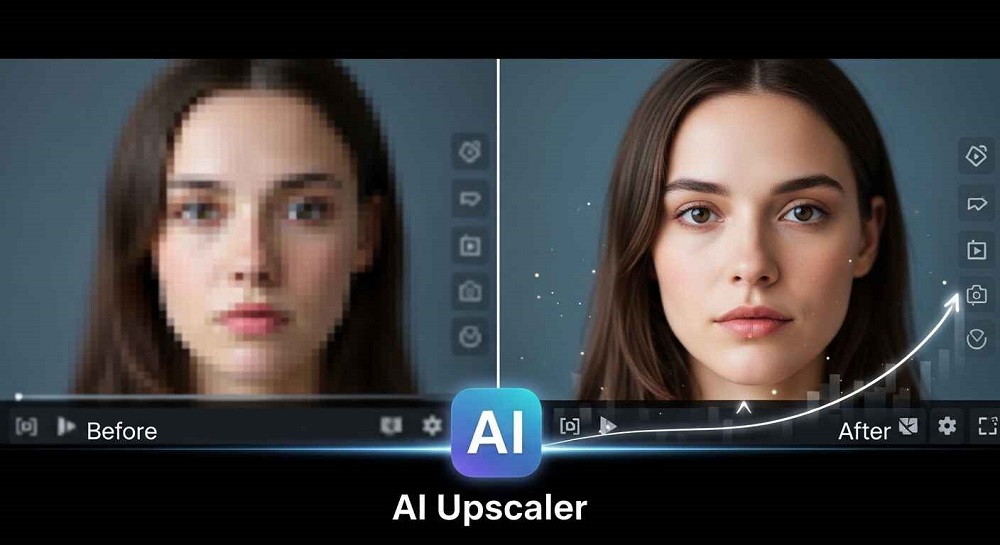
You recorded a video, or maybe you downloaded an old clip, and when you play it back the quality is just not there. It is blurry, pixelated, or just looks dull and low resolution. You want to use it but it does not look professional enough to publish.
Sound familiar? This is one of the most common problems creators, marketers, and everyday users face. The good news is that you do not need expensive software or a powerful computer to fix it. There are FREE AI-powered video upscaler tools available online right now that can significantly improve video quality in just a few minutes.
In this post, we will walk through what causes blurry videos, how AI upscaling actually works, the best free tools to use, and some practical tips to get the best results possible.
Why Do Videos Look Blurry or Low Quality?
Before fixing the problem, it helps to understand what caused it. Blurry or poor quality videos usually come from one or more of these reasons:
- The original video was recorded in LOW RESOLUTION such as 480p or 720p
- The video was compressed too aggressively during export or upload
- The footage was recorded in poor lighting conditions
- The camera was out of focus or moving during recording
- The video was downloaded from a platform that reduced its quality automatically
- The file was converted between formats multiple times, losing data each time
Some of these issues, like camera shake or bad lighting, can not be fully fixed after the fact. But LOW RESOLUTION and compression artifacts? AI upscaling tools handle those really well.
What Is AI Video Upscaling?
Great question. AI video upscaling is the process of using artificial intelligence to increase the resolution and overall quality of a video. Unlike traditional upscaling which just stretches pixels and makes things look worse, AI upscaling actually PREDICTS and fills in detail that was not in the original footage.
The AI model is trained on millions of videos. It learns what high resolution content looks like compared to low resolution content. When you feed it a blurry video, it uses that learned knowledge to reconstruct a sharper, more detailed version of the same footage.
The results can be genuinely impressive. A 480p video can often be upscaled to look like a reasonable 1080p output. It is not magic, and it does not work perfectly in every case, but for most everyday use cases it makes a very noticeable difference.
Best Free AI Video Upscaler Tools Available Right Now
Here are the top tools worth trying. All of them have a free tier or a free plan that is actually usable, not just a five second demo.
| Tool | Upscaling Quality | Max Resolution Output | Free Tier | Best For |
|---|---|---|---|---|
| Topaz Video AI | Excellent | 8K | Trial only | Professional grade enhancement |
| HitPaw Video Enhancer | Very Good | 4K | Yes (with watermark) | General use and social media |
| Clideo Video Cleaner | Good | 1080p | Yes | Quick online fixes |
| AVCLabs Video Enhancer | Very Good | 4K | Yes (limited) | Noise reduction and sharpening |
| Unscreen + Canva combo | Moderate | 1080p | Yes | Social media ready clips |
| Pixop | Excellent | 4K | Pay per use (affordable) | Film and broadcast content |
Let us look at some of these tools in more detail so you know exactly what to expect from each one.
HitPaw Video Enhancer
HitPaw is probably the most accessible option for beginners. It has a simple drag-and-drop interface, multiple AI enhancement models to choose from, and produces solid results for most types of footage. The free version does add a watermark to the output, but it is a good way to test whether the tool actually improves your specific video before paying for anything.
It offers several AI models including one specifically for face enhancement, one for general video sharpening, and one for animation style content. Choosing the right model for your video type makes a real difference in the output quality.
Topaz Video AI
This is the GOLD STANDARD of AI video upscaling right now. The results it produces are genuinely remarkable, especially for older footage. It supports upscaling all the way to 8K and has multiple models optimized for different types of content like interlaced footage, CGI, or natural video.
The downside is that it is a desktop application, not a browser tool. It also requires a reasonably powerful computer to run well. The free trial lets you process a limited number of frames which is enough to test it properly before deciding.
AVCLabs Video Enhancer AI
AVCLabs is a solid middle ground option. It handles noise reduction, sharpening, and upscaling all in one tool. The free tier allows you to process short clips, which is enough to evaluate the quality. The interface is clean and it does not require much technical knowledge to use effectively.
Clideo
If you want the fastest option and do not want to download anything, Clideo works entirely in your browser. Upload the video, apply the enhancement filters available, and download the result. The quality improvement is more moderate compared to desktop tools but for quick fixes and social media clips it gets the job done without any installation.
Step by Step: How to Upscale a Blurry Video Using HitPaw
Let us walk through the process using HitPaw as the example since it is free to try and easy to use for most people.
- Download and install HitPaw Video Enhancer from the official website
- Open the application and click ADD VIDEO to upload your blurry or low quality clip
- Select the appropriate AI model based on your content type. Use GENERAL DENOISE for most videos or FACE MODEL if your clip has a lot of close up face footage
- Set the output resolution. For most use cases, upscaling to 1080p or 4K is recommended
- Click PREVIEW to check a few frames before processing the full video
- If the preview looks good, click EXPORT to process and download the full enhanced video
- Review the final output and compare it side by side with the original to confirm the improvement
The processing time depends on your computer hardware and the length of the video. A 1 minute clip usually takes between 3 and 10 minutes on a standard laptop.
Key Factors That Affect Upscaling Results
Not every video will upscale equally well. Here are the factors that have the biggest impact on the final result:
- ORIGINAL QUALITY: A slightly blurry 720p video will upscale much better than a heavily compressed 240p video. The AI has more usable data to work with.
- CONTENT TYPE: Videos with slow, steady movement upscale better than fast action or highly dynamic footage.
- FACES AND TEXT: Most AI upscalers struggle with text inside videos. Faces generally improve well, especially with dedicated face enhancement models.
- FILE FORMAT: Using a higher quality source file like an MP4 with minimal compression will give the AI more to work with compared to a heavily compressed file.
- HARDWARE: Desktop upscaling tools run much better on systems with a dedicated GPU. If your computer is older, browser-based tools might be a better fit.
What About AI Generated Videos? Do They Need Upscaling?
This is an interesting question. AI generated videos from modern tools generally come out in 720p or 1080p resolution by default. For most social media platforms, that is perfectly fine. But if you want to display the content on a large screen or use it in professional production, upscaling can definitely help push the quality further.
If you are generating videos with AI tools and want to start with the cleanest possible output before applying any upscaling, it helps to use generators that already produce high quality results. The AI Video Generators on VeoAIFree include several tools that produce clean, high resolution outputs from the start, which means less post-processing work on your end.
For image content that might need similar enhancement treatment, the same principle applies. Starting with a high quality AI-generated image is always better than trying to recover a low resolution one. The AI Image Generators on VeoAIFree are worth exploring if you need sharp, ready-to-use visual content alongside your videos without any quality issues.
Common Mistakes to Avoid When Upscaling Videos
- Upscaling too aggressively. Going from 240p to 8K in one step often creates an unnatural, over-processed look. Upscale in steps if possible.
- Using the wrong AI model for your content type. A model built for animation will not perform well on real life footage and vice versa.
- Forgetting to check the audio. Video enhancement tools sometimes re-encode the audio and reduce its quality. Always check sound after processing.
- Not comparing before and after. It sounds obvious but many people skip this step and publish something that does not look significantly better than before.
- Over-sharpening. Some tools have sharpening sliders and pushing them too high makes footage look artificial and grainy in a different way than the original blur.
Quick Comparison: Browser Tools vs Desktop Tools
| Factor | Browser-Based Tools | Desktop Tools |
|---|---|---|
| Setup Required | None | Download and install |
| Processing Speed | Moderate (server dependent) | Fast (uses your GPU) |
| Output Quality | Good | Excellent |
| File Size Limit | Usually under 500MB | No limit |
| Privacy | File uploaded to server | Processed locally on your machine |
| Best For | Quick fixes and short clips | Long videos and professional use |
Tips for Getting the Best Upscaling Results
A few small habits can make a meaningful difference in how good your final upscaled video looks:
- Always work with the HIGHEST QUALITY version of the source file you have access to. Even a small improvement in the input leads to a noticeably better output.
- For longer videos, upscale in segments rather than trying to process the whole thing at once, especially on free plans with length limits.
- Test multiple AI models on a short section before processing the full video. The right model makes a big difference.
- Save the original file before upscaling. You can always go back to it if the enhanced version does not look right.
- Export in a lossless or high-bitrate format to preserve the quality gains from upscaling. Exporting at low bitrate after enhancement wastes the whole effort.
Final Thoughts
Blurry, low quality video does not have to stay that way. AI upscaling tools have genuinely changed what is possible for everyday creators and professionals alike. What used to require expensive software and a lot of technical skill can now be done in a browser or with a simple desktop application in just a few minutes.
Start with a FREE tool, test it on a short clip first, and compare the results before committing to any paid plan. Most of the time, you will be genuinely impressed by how much better even a basic AI upscaler can make an old or blurry video look.
And remember, the best strategy is always to start with the HIGHEST QUALITY source material you can. Generate clean videos from the beginning, enhance when needed, and your content will always look its best wherever you publish it.